
Niara’s Content Workflow is the ultimate tool for those who need efficiency. With it, you can analyze the competition in real-time, create strategic briefings, and write optimized articles with the help of our AI—all in one place.
How to use the feature: Step by Step
Step 1: Detailing and SERP Analysis
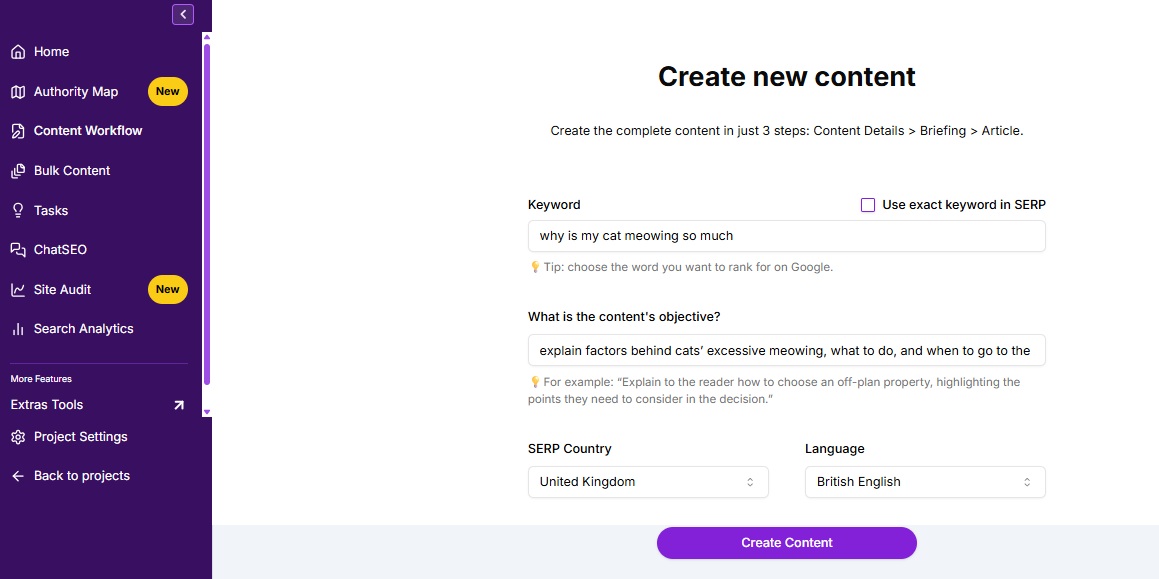
Everything starts with defining your goal. Niara uses this data to extract real-time information from Google.
- Go to Content > Content Workflow and click start.
- Enter the Main Keyword (e.g., “how to automate SEO processes”).
- Define the Goal: Explain to Niara what you want to achieve (e.g., “Inform about benefits and how-to”).
- Select the Country and Language so Niara analyzes the correct local competitors.
Step 2: Building the SEO Briefing
On this screen, Niara displays People Also Ask and the organic results (titles, metas, headings, and keywords) of your competitors.
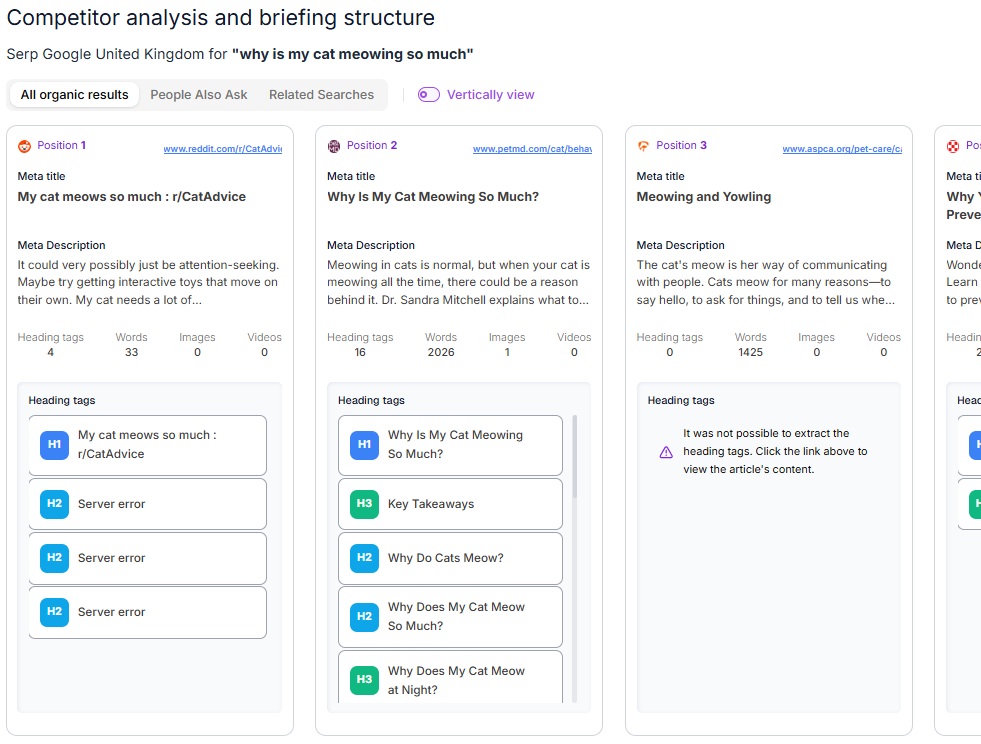
How to generate your briefing:
- Generate automatically: Click on Generate Briefing based on SERP. Niara will analyze competitor patterns and, most importantly, identify Content Gaps (topics no one is talking about, but are relevant).
- Manual Creation: You can click on competitor topics to add them to your draft on the right and customize them.
- Meta tags Optimization: Use the star icon (AI) to generate Meta Titles and Descriptions that respect Google’s character limits.
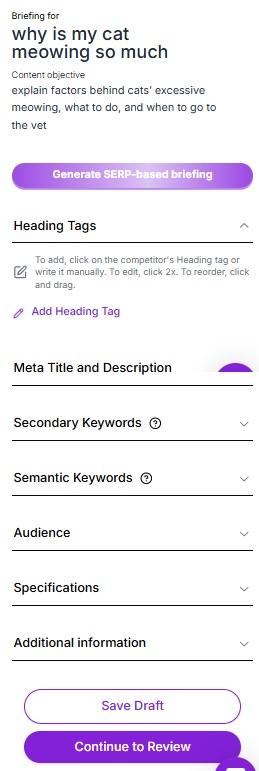
- Need to pause your work? Click “Save draft” so you don’t lose anything and resume editing whenever you want.
- All set? Move forward to view the full briefing.
Review and Next Steps
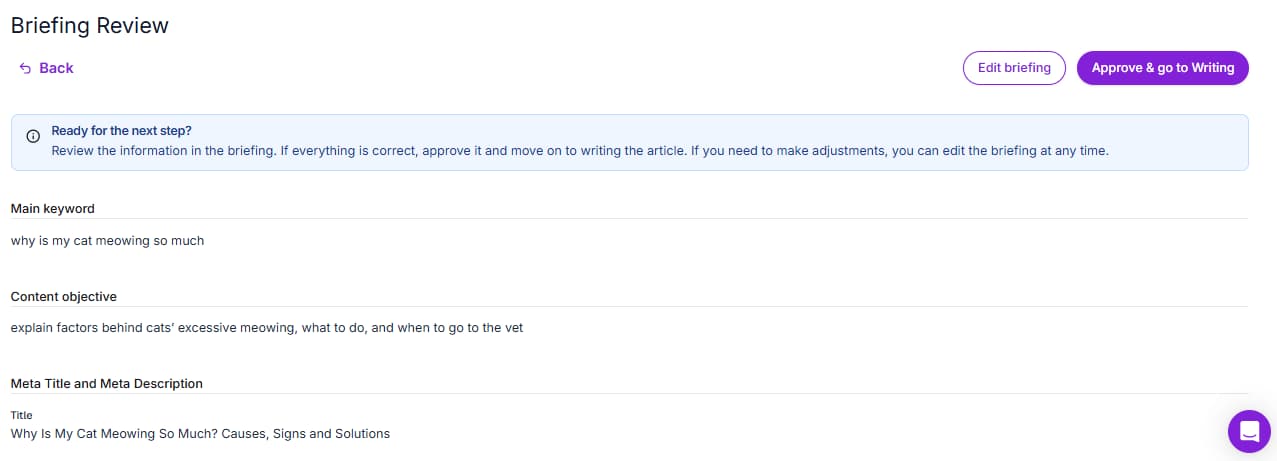
During the Briefing review stage, after clicking “approve and proceed to writing,” the Workflow generates a shareable link of your briefing. You can send it to clients or external writers—they don’t need a Niara account to view and approve it!
If the structure is perfect, move on to writing the article.
Step 3: Creating the Article with AI
When you move to the editor, all your Heading Tags (H1, H2, H3) will already be there. Now, let’s bring the text to life.
There are no limits to content generation in the Article Creator—feel free to create articles as long as you need. You won’t be charged anything beyond 1 Content credit in your Niara plan. To learn more, check out our guide on Niara Credits.
Getting to know the Writing Panel
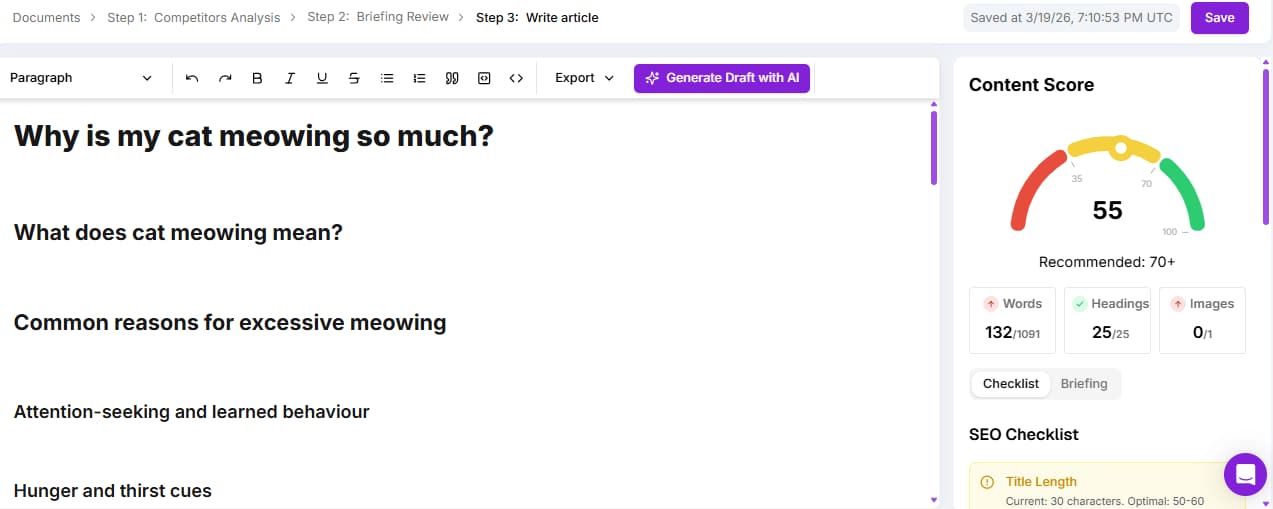
- Editing Bar: Here you have control over formatting (bold, italic, underline, quotes, lists, and heading tag levels). This bar also contains the “Generate Draft with AI” button, which triggers Niara to write the entire content at once.
- Content Score: Located in the right sidebar, this feature takes your briefing details and SEO rules into account—it analyzes your text in real-time to ensure it aligns with Google’s best practices. The score is divided into three quality levels:
- Below 35: Low quality (requires attention and adjustments).
- 35 to 70: Medium quality (on the right track, but with opportunities for improvement).
- Above 70: High quality (excellent ranking potential).
The Content Score helps you quickly identify what needs adjustment by evaluating crucial factors such as: title length, keyword in title, meta description, content length, number of images, alt text, internal links, presence of H1, H2, and the total number of heading tags.
Ways to activate Niara within the Article Creator (our AI):
- Space Shortcut: Press the “Space” key on an empty line to open the quick tasks menu.
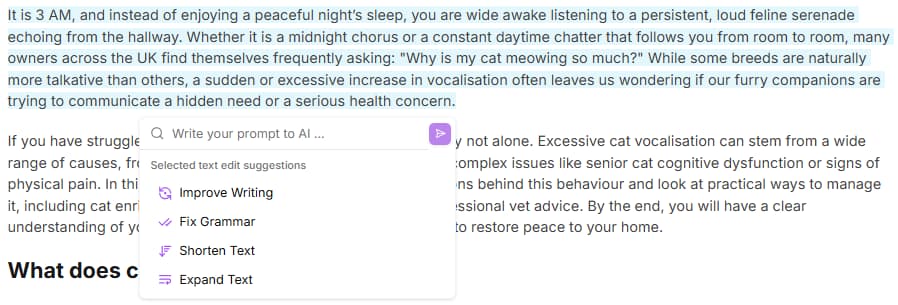
- Text Selection: Select a topic and click the Niara AI button to chat with the AI or click on a predefined command like Rewrite, Grammar, or others.
How to generate your content
With the panel mastered, it’s time to bring the text to life. Niara adapts to your workflow, allowing you to choose how you want to produce:
1. Automatic Generation (Full Draft): Want to scale your production and save hours of work? Click “Generate Draft with AI” and let Niara write the entire text based on your structure.

2. Topic-by-Topic Generation (Copilot): Prefer to build the text in blocks and have more control throughout the process? Place the cursor in the ideal spot and press the space bar for Niara to write that section.
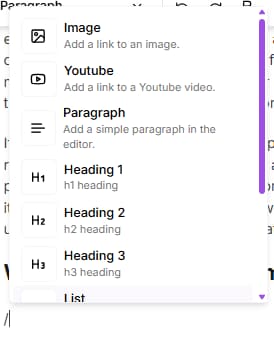
You can also type the “/” key to view a menu with the main quick commands and add images (via link) or just paste YouTube video URLs.
Step 4: Finalization and Export
With the text finished and the Content Score high, it’s time to publish. In the editor’s top bar, you’ll see the ‘Export’ option. By clicking it, you can choose between copying the HTML or copying the formatted text.
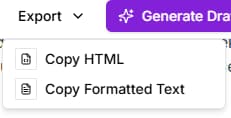
Then, just paste it directly into your CMS (like WordPress, for example), and your content will be ready to go live, maintaining all the original formatting. Simple, fast, and no rework!
Plan Limits
Content Workflow is available in all Niara plans, but with different usage limits:
- Scale Plan: Limit of 100 Content Workflows generated per month (shared among team members).
- Team Plan: Limit of 60 Content Workflows generated per month (shared among team members).
- Solo Plan: Limit of 8 Content Workflows generated per month.
Need to generate more content? Check out our Enterprise plan.
Ready to dominate the first page?
Gain efficiency, save time, and transform your content strategy today.