
Your trial period has begun, and our goal is simple: to save you time and help you dominate the search results.
During the next 7 days, you have access to all the platform’s tools to experience the power of Niara in your daily routine. Check out the limits for your trial period:
- Brand guide
- ChatSEO, AI agents, and bulk content available (generation limit up to 5,000 words — complete the onboarding challenge to earn more credits!)
- Content workflow (generation limit up to 2 pieces of content — complete the onboarding challenge to earn more credits!)
- Authority map: 1 strategic analysis per account.
- Search analytics: insights for up to 100 keywords and pages.
- Site audit: technical diagnosis for up to 50 URLs (including Core Web Vitals and indexing).
We’ve prepared this practical guide to help you take your first steps and extract maximum value from minute one. Shall we begin?
Phase 1: initial setup
Setting the context is the first step to ensuring Niara generates results that feel like they were written by you, specifically for your audience.
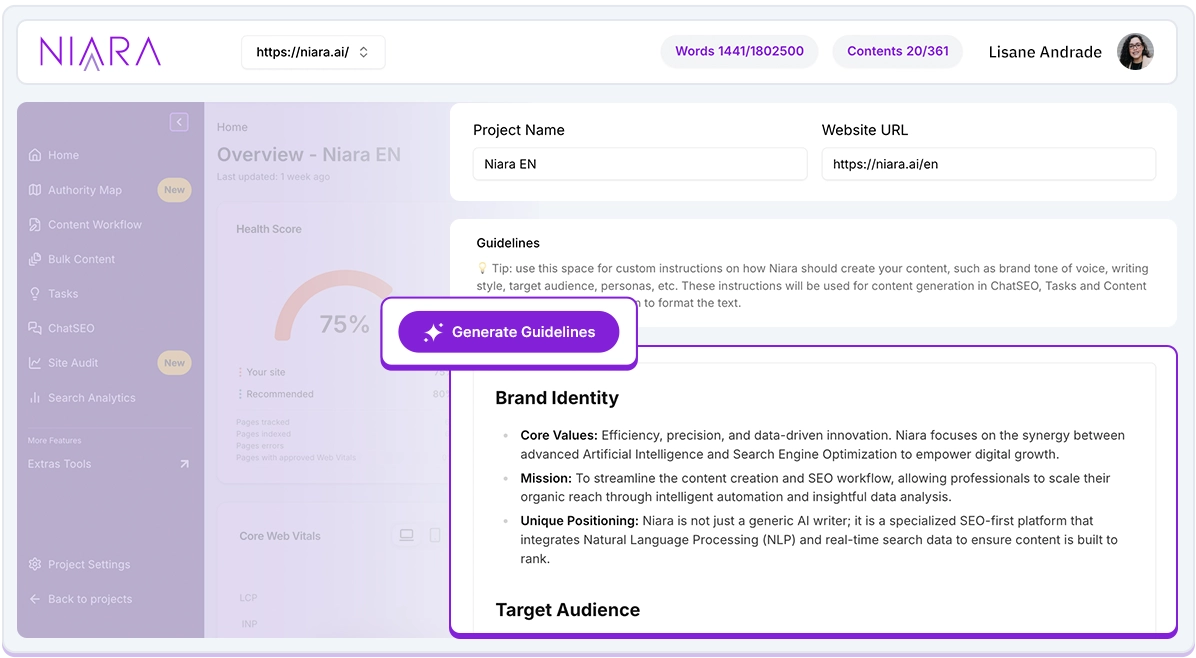
1. Define your identity with the Brand guide
Have you ever felt like text generated by standard AIs all sounds the same? That happens because they lack your brand’s DNA. At Niara, we solve this with the Brand Guidelines.
By configuring your guidelines, you teach Niara who your persona is, what your tone of voice is (whether it’s professional, casual, or technical), and which terms you prefer to avoid.
- Where to set it up: go to Project settings > Guidelines
Pro tip: fill this out with as much detail as possible. Once configured, you won’t need to repeat massive prompts every time you need to create something. Niara will automatically apply this context across all tools, from ChatSEO to Content workflow.
2. Connect your Google Search Console (GSC)
If the Brand guide is the heart of your strategy, Search Console represents the eyes. Without real data, we’re just guessing.
By connecting GSC, Niara stops analyzing the internet in a generic way and starts looking specifically at your performance.
- Where to set it up: go to Project settings > Integrations > Connect account
After connecting, select the desired account and property, then click Save project.
From here, you unlock a new level. Niara crosses your real traffic data with our intelligence to deliver:
- Smart reports without needing spreadsheets (via Search analytics).
- Site health diagnostics (via Site audit).
- Content suggestions based on what Google already considers you an authority on (via Authority map).
Phase 2: Diagnosis and site health
With your “house” set up and data connected, it’s time to look at the foundation. In this phase, we transform technical data and performance metrics into a clear action plan for your site.
3. Start by analyzing technical site performance
Through the Site Audit, you can see if there are any technical issues holding back your growth. Unlike other platforms that only show you the error, here, you can chat with Niara to understand what it is, the level of criticality, and how to fix it.
Since the data is pulled directly from GSC and PageSpeed Insights, it gives you a real-world view of how Google perceives your technical health.
- Where to find it: Sidebar menu > Site Audit
- Credit usage: your analysis and chats with Niara do not consume credits.
4. Understand organic performance with conversational analytics
In ChatSEO, you use the @gsc parameter to ask direct questions to your data and receive ready-to-use answers for decision-making.
Niara doesn’t just bring the results in a table; it offers insights so you know exactly what to optimize, create, or recycle.
- Where to find it: Sidebar menu > ChatSEO > Type @gsc followed by your question
- Credit usage: usage is calculated only by the number of words generated in ChatSEO. The cost varies based on the length of the response.
Prompt examples for you to test right now:
- Performance overview: what were the top 10 queries that generated the most clicks in the last 3 months?
- Identifying opportunities: which pages had an average position between 5 and 10 in the last month?
- Generative analysis:
- list the 10 pages with the highest number of impressions and lowest number of clicks in the last month (these pages might be appearing in AI Overviews; analyze them to understand patterns).
- which queries with more than 5 words generated impressions for my site in the last week? (ideal for identifying long-tail terms).
Having a clear view of technical and organic performance is what ensures your site is read correctly by both traditional search bots and generative AIs.
Phase 3: Planning and optimization for GEO
Now that you know your site’s health and where the opportunities lie, it’s time to act.
Use Niara’s intelligence to organize your authority and prepare your content for the future of search.
5. Identify potential cannibalization
Cannibalization occurs when different pages on your site compete for the same term, confusing Google and splitting your ranking power.
In Search Analytics, you can quickly identify these URL conflicts. Instead of keeping weak pages competing against each other, you use the available information to consolidate strength, apply redirects, and ensure the right page dominates the SERP.
- Where to find it: Sidebar menu > Search Analytics
- Credit usage: as long as there is no interaction (for example, interpreting data via ChatSEO), your analysis does not consume credits.
Tip: copy the list of cannibalizing URLs, paste it into ChatSEO, and ask Niara to help you build an action plan with this prompt:
These are the URLs on my site that are cannibalizing. Based on my core niche and performance data, help me build an anti-cannibalization action plan, indicating priorities by day and week.*
*In this case, credits would be consumed based on the number of words generated in Niara’s response.
6. Optimize your content for GEO
Modern SEO requires relevance for both traditional algorithms and AI Overviews (AIO). To help you with this task, the Google AI Mode Insights feature diagnoses your content based on official Google documentation regarding generative search.
By entering a URL (homepage, landing page, blog post, or product page), Niara performs a deep diagnosis and tells you which fan-out queries are being answered, as well as information and UX gaps that AIs (and users) value.
- Where to find it: Sidebar menu > AI Mode Insights
- Credit usage: Google AI Mode Insights does not consume credits.
To start, choose your most important page and run the diagnosis. Apply the recommendations as needed to increase your chances of appearing at the top of AI-generated answers.
7. Create your content calendar
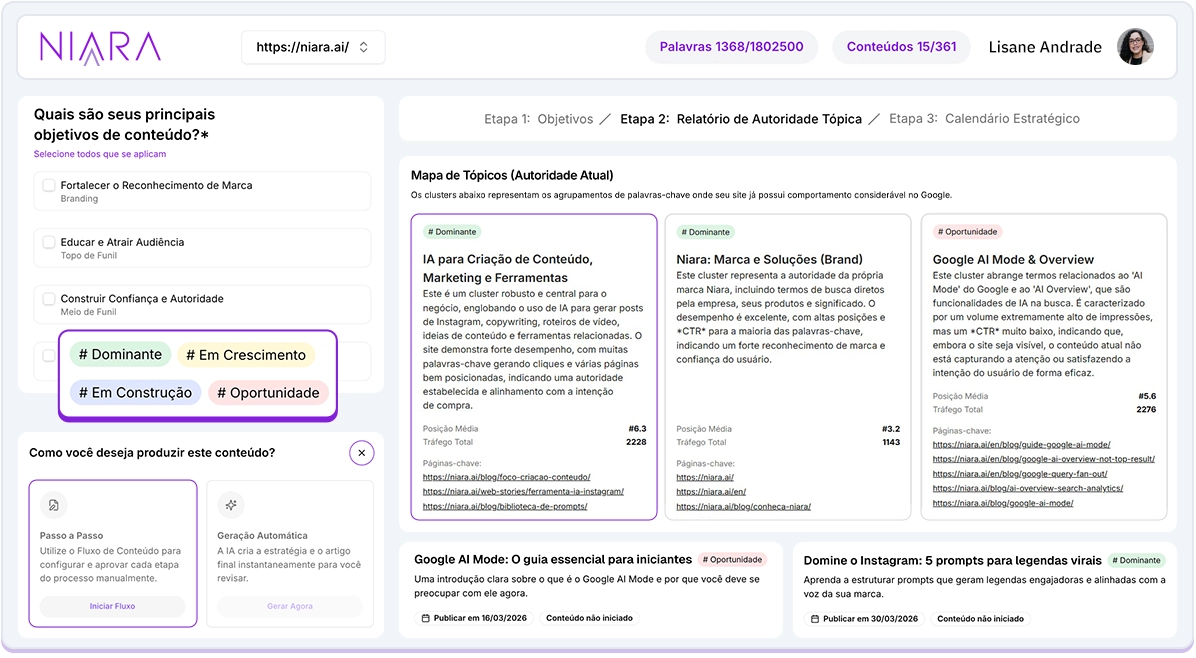
The Authority Map is an exclusive tool that crosses your Search Console data with our AI to identify exactly where Google already sees you as an authority and where you have content gaps.
During the trial period, you can take the opportunity to test the tool and visualize:
- Your site’s overall content performance
- If topical authority is aligned with your brand
- Which clusters are your strongest and weakest
Subscribers can create editorial calendars for up to 3 months.
- Where to find it: Sidebar menu > Authority Map
- Credit usage: testing the Authority Map does not consume credits.
Phase 4: Production and scale
Ready? It’s time for actual production. With the help of our creation tools, you can break through writer’s block and eliminate repetitive work.
8. Create blog articles, landing pages, or product descriptions
Use the Content Workflow to create different types of content for your site. This feature automates the entire editorial process: it analyzes the SERP in real-time, identifies content gaps (what competitors aren’t covering), and automatically generates a strategic briefing — for both SEO and GEO.
As you move forward, Niara writes the text faithfully following your Brand guide and Google’s AI documentation, ensuring the content has your voice and is well-optimized, whether it’s a deep blog post, a persuasive landing page, or a conversion-focused product page.
- Where to find it: Sidebar menu > Content Workflow
- Credit usage: the workflow consumes Content credits, which means that after creating the briefing, you have total freedom to automatically generate, edit, expand, and refine the text without spending word credits. During the trial, you can create up to 2 complete pieces of content via the workflow.

9. Scale with personalized content
If you manage a large site, you know that creating descriptions and snippets individually is impossible. The Bulk Content feature solves this bottleneck, allowing you to generate hundreds of titles, meta descriptions, and product descriptions all at once.
Simply download the spreadsheet, fill in the indicated fields, upload it back to Niara, and validate the information before starting the process.
To give you an idea, Niara can generate 500 product descriptions in 15 minutes, maintaining quality and optimization at scale.
- Where to find it: Sidebar menu > Bulk Content
- Credit usage: Bulk content consumes word credits based on the number of rows filled. In other words, the more titles, descriptions, or product descriptions you want to create, the more credits will be used per generation.
10. Optimize and create content for social media
Today, SEO doesn’t just happen on Google; it’s multi-channel. That’s why Niara is the ideal partner for social media managers or content strategists, bridging organic visibility and engagement.
Our AI Agents (formerly Tasks) are trained in the specific best practices of each network to ensure your content is found and consumed.
With Niara, you scale your social presence:
- Videos and reels: create magnetic video scripts and optimized captions focused on retention.
- LinkedIn authority: generate strategic post ideas and structure newsletters that position you as an industry leader.
- Optimized profile: create Instagram bios that use keywords to make your profile easier to discover.
- Smart recycling: use the YouTube to Article tool to transform any video into a complete, optimized SEO article, ready to be published on your blog in seconds.
As a result, you ensure a 360º content strategy that recycles your authority, saves time, and dominates every customer touchpoint.
- Where to find it: Sidebar menu > AI Agents or Extra tools (to access YouTube to Article)
- Credit usage: YouTube to article does not use your credits. AI agents, on the other hand, consume credits based on the number of words generated by Niara in the response.

Your journey to the top starts now
See how much you can explore and benefit from the Niara ecosystem, even during your trial period?
If any questions come up along the way or if you want to dive deeper, visit:
- Niara Academy: our free video platform to help you become an SEO and AI expert with Niara.
- Help Center: for technical questions, setup guides, or troubleshooting.
- Niara Blog: to stay up to date with SEO, Google, and content trends.
We are here to simplify your work and accelerate your results.
Let’s dominate the search results together!
