If you follow Niara, you know we are constantly evolving. The Projects feature has been known to our users for a year as the best way to organize work, but we decided to take it a step further.
Recently, Projects have evolved to hold your brand context, in addition to connecting with your Google Search Console data. This means that everything you create—whether in ChatSEO, Content Workflow, Tasks, or Bulk Content—will be isolated, organized, and now, automatically personalized.
In a market flooded with generic content, Niara does the opposite. We ensure quality, context, and total adherence to your brand rules. Here is a detailed guide on how to use the Projects feature.
Why Work with Projects?
Organizing by projects isn’t just aesthetic; it’s functional and strategic. There are several ways to structure your account in Niara:
1) You work In-house
If you use Niara within a single company’s marketing team, you can separate projects by digital properties:
- Project 1: Main E-commerce
- Project 2: Corporate Blog
- Project 3: Performance Landing Pages
2) You are an Agency or Consultant
In this case, separating by client is vital to maintain data integrity and strategy security:
- Project 1: Client A (Retail)
- Project 2: Client B (SaaS)
- Project 3: Client C (Services)
By accessing a specific project, you ensure you never mix data from different clients and that the AI is laser-focused on that specific business context.
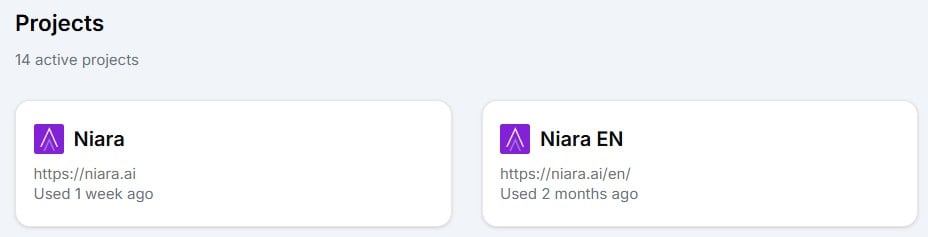
For example, at Niara, we have Projects for different languages:
How to Create and Manage Projects
There are two simple ways to create new projects in Niara:
Option 1) Project List (Top Menu)
At the top of the platform, there is a dropdown menu with your project list. Click on it and select “New Project.” Enter the name, the site domain, and create it.
Option 2) Sidebar Menu “Back to Projects”
In the left sidebar, click on “Projects” to view your complete list (active and archived). The “New Project” button will be in the top right corner.
Moving data between Projects
Did you create content in the wrong project? No problem. We offer total flexibility:
- Content Flows: In the list view, click the three dots to the right of the document > “Move to another project.”
- ChatSEO: In the chat history, click the three dots next to the message > “Move Chat.”
- Bulk Content: Next to the file name, click the three dots and then “Move to another project.”
- Tasks: History Tab > Below each generated text, there is an arrow icon to “move message to another project.”
Archiving Projects
Did a contract end or was a site discontinued? Go to Project Settings and click “Archive project.” It will be removed from your main workspace, but the data remains saved and accessible via the “Projects” menu if you need to unarchive it in the future.
How to Configure Your Project
Inside a project, click on “Project Settings” in the left sidebar and fill in the requested fields.
Basic Data
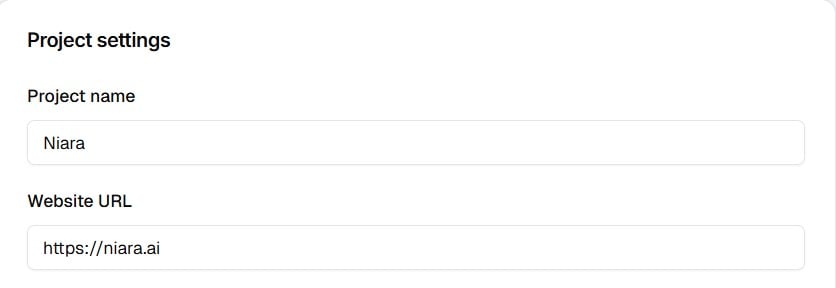
Enter the site name and the domain URL.
This ensures you can easily find it in the dropdown list (at the top of the platform) or on the Projects dashboard.
The game changer: Brand Guidelines
This is the most critical update we’ve made to Projects. Now, you configure the Brand Guidelines directly within the Project.
We know that one of the biggest bottlenecks in using AI is having to repeat, in every single prompt, who your persona is, what the brand’s tone of voice is, and what should not be said.
With the Projects update, you input these guidelines once in the settings. From that moment on, Niara “reads” these rules before generating any content.
What does this mean in practice?
- Context: When asking for a text, Niara already knows whether to use a “fun and youthful” tone or a “technical and corporate” one, without you having to ask.
- Consistency: All articles, briefs, and product descriptions generated in that project will follow the same verbal identity.
- Time Savings: We eliminate the need for endless context prompts.
Pro Tip: Auto-Fill with AI 💡
Not sure exactly how to describe your brand’s tone of voice? Niara can do it for you. In ChatSEO, choose the Gemini 3 model and click the “Search the web” option (in the ChatSEO footer). Then, provide your brand name, your domain, and ask Niara to generate your Brand Guidelines (feel free to give Niara more instructions—the more context, the better). Review the generated text and, if everything looks correct, paste it into the Brand Guidelines field.
Search Analytics: Data Integrated into the Project
Another robust evolution is the native integration with Google Search Console (GSC) through our Search Analytics.
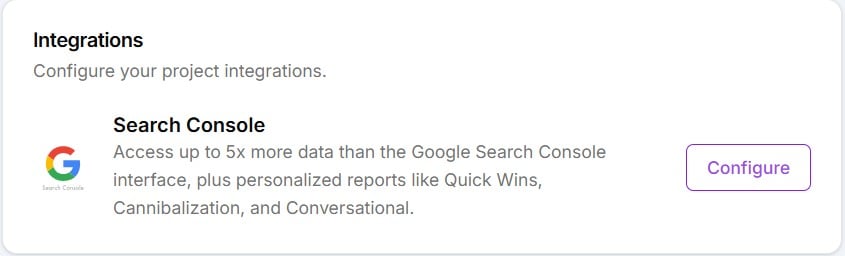
By linking a GSC property to a specific Project in Niara, you unlock exclusive reports and the power of Conversational Analytics. You can open ChatSEO within that project and “talk” to that specific site’s data.
Example: “@gsc List the 10 pages with the least traffic in the last 30 days and suggest optimizations based on the Brand Guide.”
Niara will cross-reference the traffic data from the linked GSC with writing rules from your Brand Guidelines. This is true data-driven SEO.
Dive deeper: Check out our detailed landing page on Search Analytics and Conversational Analytics.
To integrate GSC, access each Project and follow the steps below:
- In the Search Console field, click “Configure.”
- Select the GSC property.
- Choose the desired property.
- Click “Save Changes.”
Done! Your project is connected to GSC.
Now, simply access Search Analytics to view reports or chat with your GSC data in ChatSEO.
Security and Privacy: Zero Data Retention (ZDR)
We know that by inserting Brand Guidelines and connecting GSC data, we are dealing with your business’s most valuable asset: your strategy.
Therefore, it is fundamental to reinforce that Niara operates with a strict Zero Data Retention (ZDR) policy regarding LLM providers for model training.
What does this mean? Your project data, your brand guidelines, and your Search Console information are NEVER used to train public AI. Your data is yours, processed in a secure and segregated environment. You can configure confidential strategies with the peace of mind that they will remain private.
Learn more in our article about Privacy and Security at Niara.
What’s Next?
Our vision is to centralize your entire SEO routine. We are actively working on it, and our next integration will be with WordPress, allowing you to manage articles without leaving our interface.
If you haven’t organized your projects or configured your Brand Guidelines yet, I recommend doing it today. The difference in quality and delivery speed is immediate.
Ainda não é cliente? Create your account and try it free for 7 days. Simplify your SEO.