
Niara’s ChatSEO is not just a chat; it is an assistant specifically configured for the search ecosystem. It combines the power of the most advanced language models (such as OpenAI and Gemini) with real data from your project.
With it, you can generate content briefs, create technical code, analyze data, and accelerate your daily production by up to 10x, while maintaining the quality and strategy your project demands.
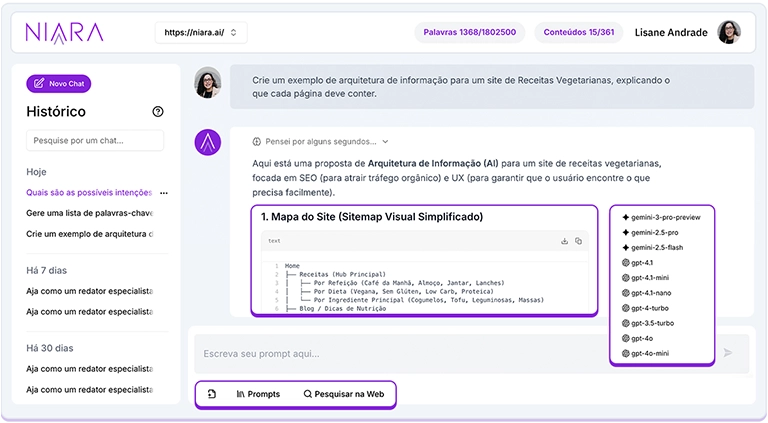
1. How to start a conversation
In the side menu, click on ChatSEO. At the bottom of the page, you will find the message field where you can type your requests (prompts).
Before starting, you must select the model: from the Gemini family or OpenAI.
2. Prompt Library: The Shortcut to Efficiency
Don’t know where to start or how to ask the AI for something? We’ve made it easy for you. Niara has a Prompt Library with over 50 models tested and approved by our team of experts.
How to use the Library:
- Click the “Prompts” button at the bottom of the chat.
- Browse the categories: Local SEO, Keywords, Link Building, Technical SEO, Google Ads, Social Media, and more.
- Choose the desired model and click “Use Prompt.”
Important: Replace the information that appears between brackets {example} with your SEO project data.
3. How to write the perfect Prompt
The quality of Niara’s response depends on the quality of your question. The more context you provide, the better the result.
Niara’s tips for an unbeatable prompt:
- Be Specific: Instead of “Write a title about weddings,” try “Write an SEO title for a blog about country weddings, focused on brides looking for a rustic and sustainable style.”
- Define the Tone of Voice: Ask Niara to be “informative,” “casual,” “authoritative,” or “persuasive.”
- Set Limits: If you need a title for Google, ask it to try to stay close to 60 characters (remembering that, like any AI, it may vary slightly).
- Don’t worry about length: The size of your question does not consume your word credits. You can send huge contexts of up to 6,000 words for Niara to analyze at no additional cost to your plan.
4. Advanced ChatSEO Features
Brand Voice Guide: Your identity in every response
Niara’s biggest differentiator is consistency. In ChatSEO, you don’t need to repeat who your audience is or what your tone of voice is in every command.
Once configured in the “Project Settings,” your Brand Voice Guide is automatically applied to every generated text.
Advantage: If your brand is “Pragmatic and Educational,” Niara will always respond in that tone, saving you the time you would spend editing robotic texts.
Multimodality: Files and URLs
- File Analysis: ChatSEO accepts attachments! You can upload files (such as keyword CSVs or PDFs) and ask Niara to analyze the data, create summaries, or identify trends.

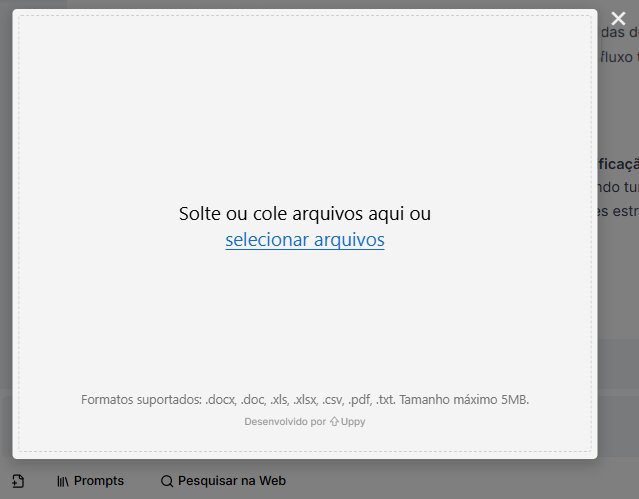
- URL Reading: Enter a URL, click “Search the Web,” and request an On-page SEO analysis (elements within the page, such as H1, meta tags, and term density). Option available only in Gemini models.

Technical SEO and Code
Need technical help? ChatSEO generates:
- Structured Data (Schema Markup): Request codes for FAQ, Article, Product, or Local Business.
- Robots.txt and Sitemaps: Generate the correct instructions for search bots.
- Error Explanation: Saw a 503 or 404 error and don’t know how to fix it? Ask ChatSEO and it will give you the step-by-step fix.
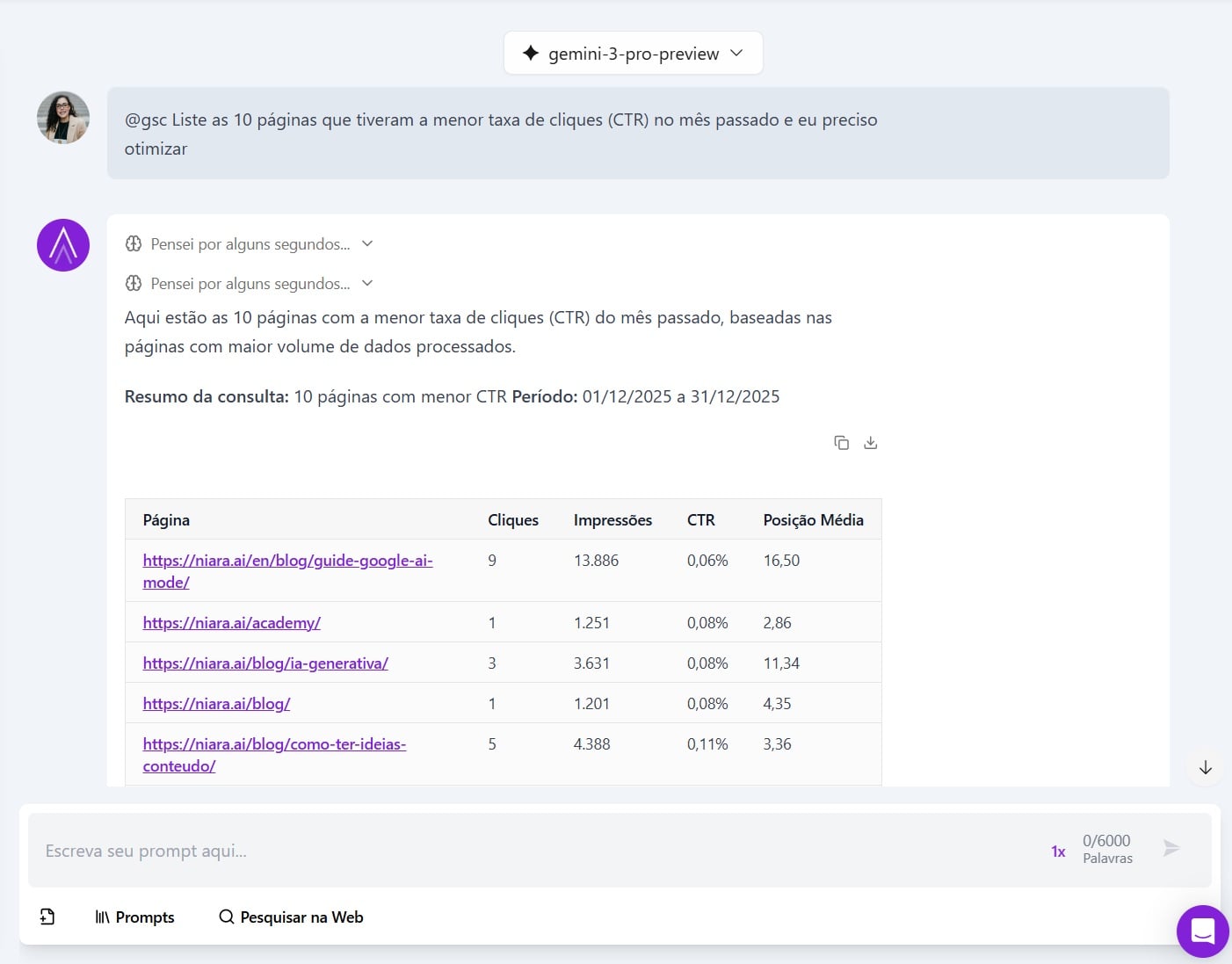
Conversational Analytics (@gsc)
If you have Search Console connected to Niara, you can use the @gsc command within ChatSEO to ask questions about your real performance on Google without needing to open spreadsheets.
5. History and Organization
All your conversations are saved in the chat’s side history. You can resume an old conversation, rename chats, move the conversation to another project, or delete what is no longer needed.
6. Limits in each plan
ChatSEO is available in all Niara plans, but with different usage limits:
- Team and Scale Plan: Unlimited access among team members.
- Solo Plan: Limit of 60,000 words per month shared between ChatSEO, AI Agents, and Bulk Content features.